MODULE 4 · CONNECTIONS
Connect Accounts
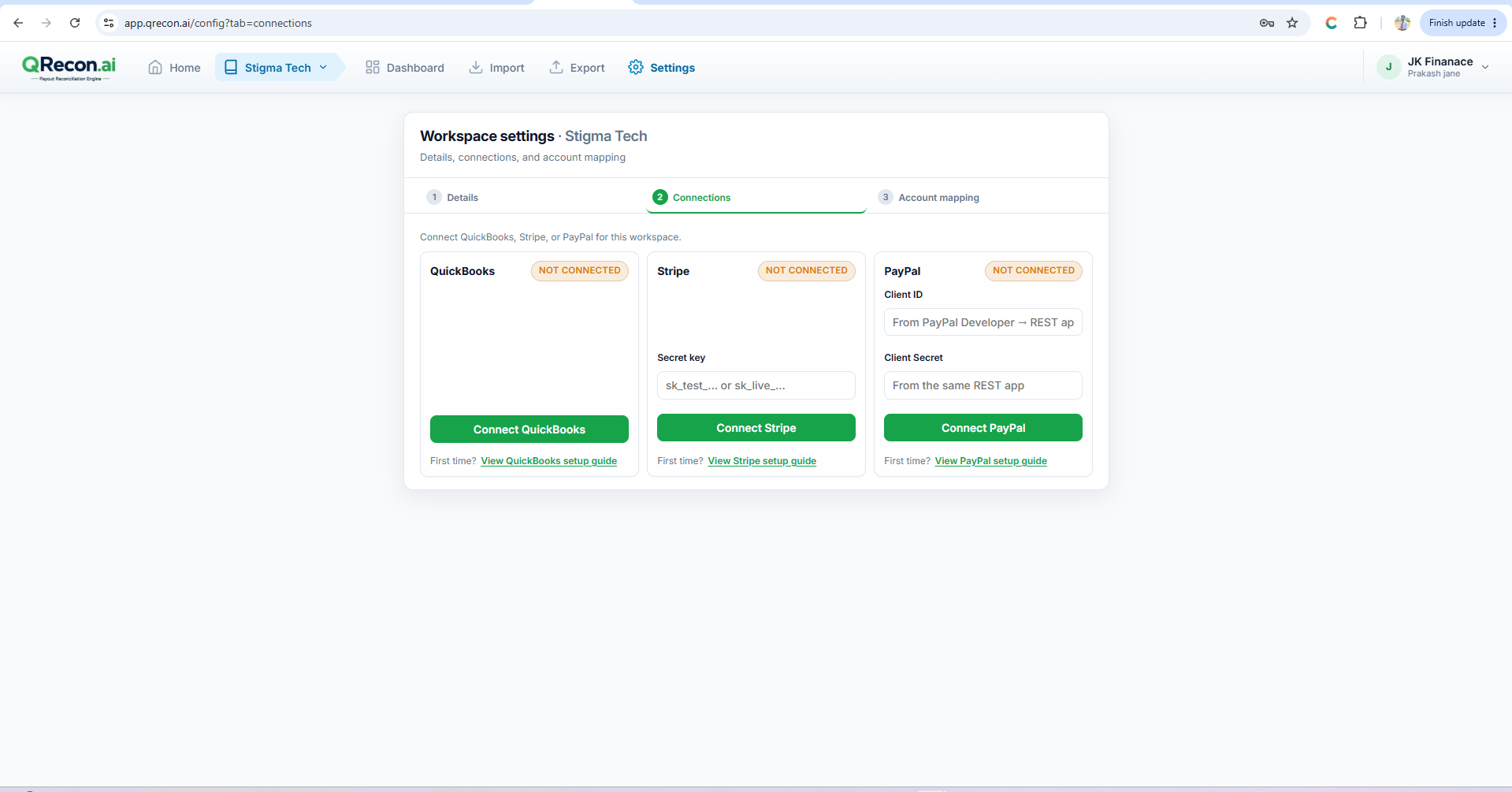
Connect QuickBooks Online, PayPal, and Stripe from inside a workspace: Settings → Connections.
Part 7 — Connect providers (Settings → Connections)
📘
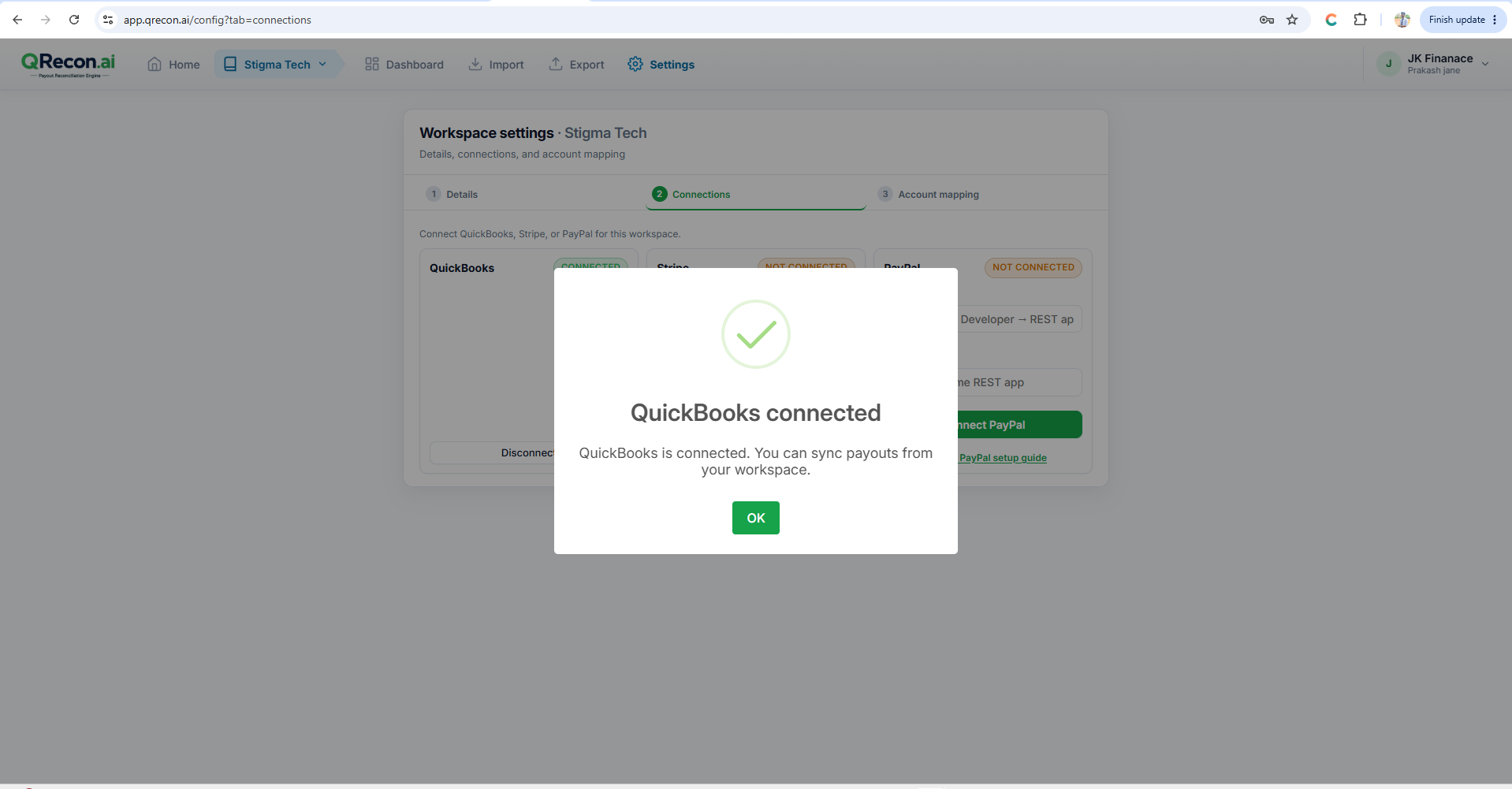
7A — QuickBooks Online
- Optional: View QuickBooks setup guide.
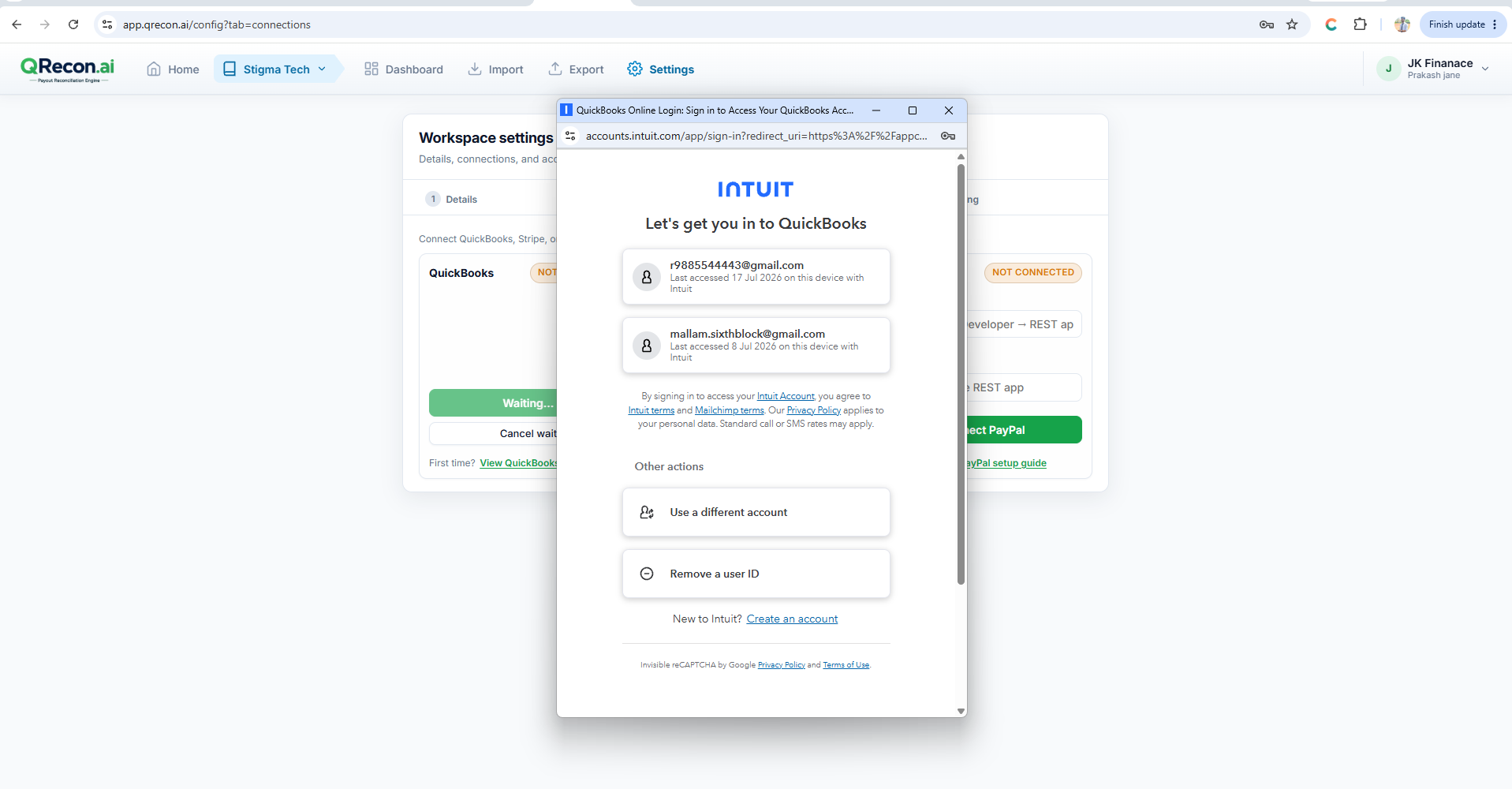
- Click Connect QuickBooks.
- Sign in to Intuit in the popup and authorize.
- Status shows Connected.
Use Disconnect if you need to reconnect a different company.
💳
7B — PayPal (API sync)
PayPal uses Client ID + Secret (not an OAuth popup).
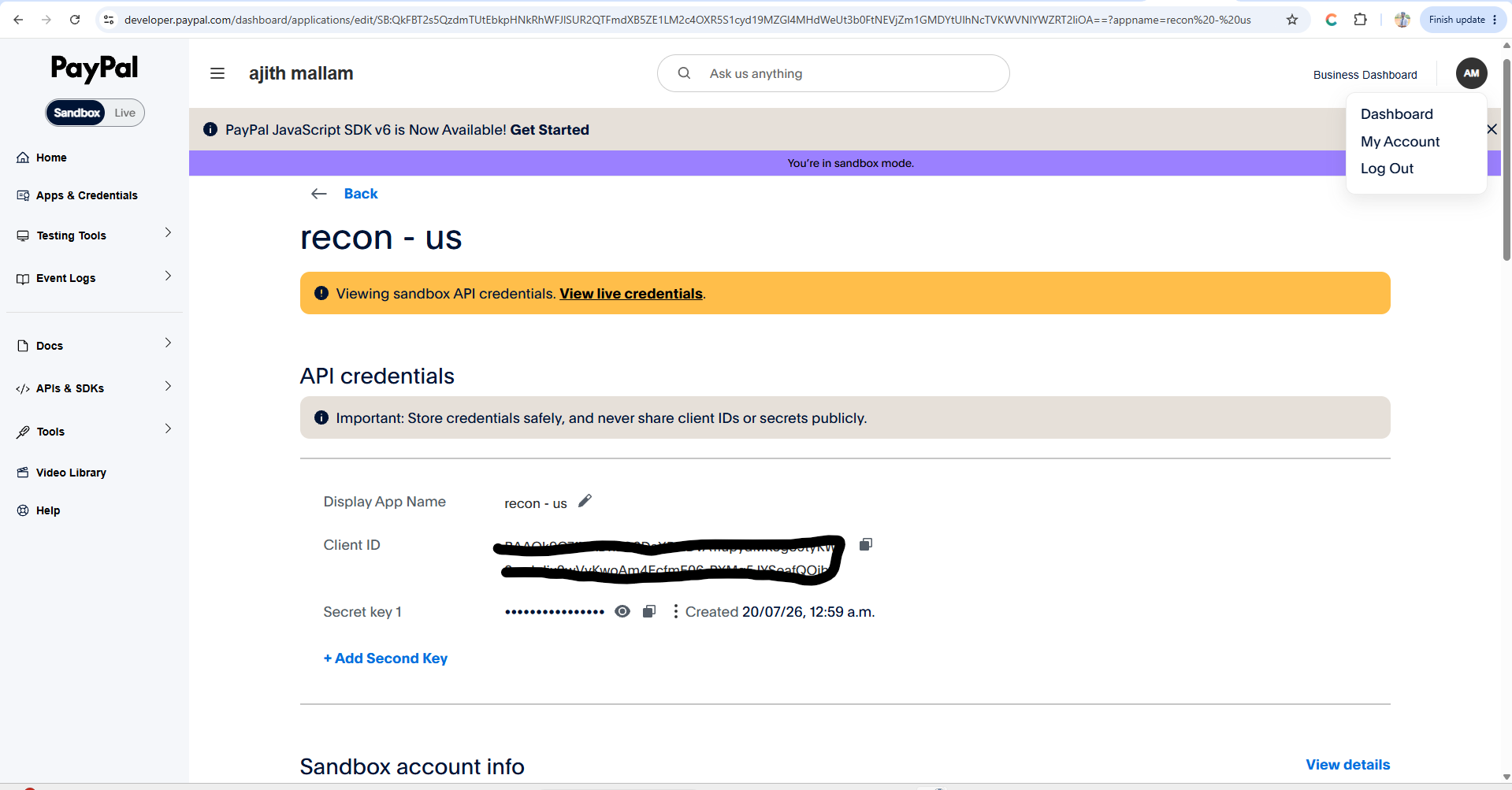
In PayPal Developer
- Sign in at PayPal Developer Dashboard.
- Choose Sandbox (test) or Live (production).
- Create or open a REST app.
- Under Product features, enable Transaction Search and save.
- Copy Client ID and Secret.
In QRecon
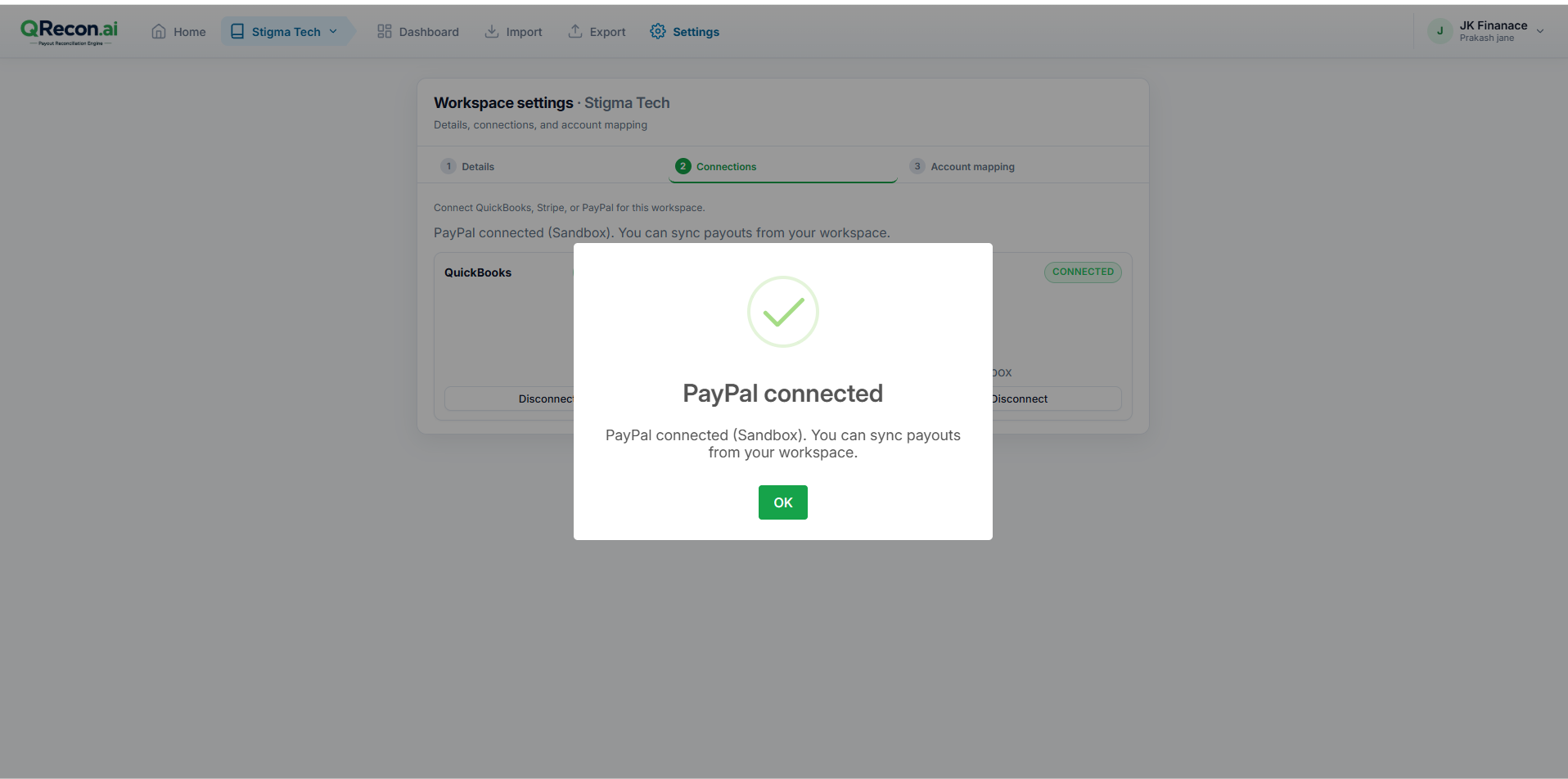
- Settings → Connections → PayPal.
- Optional: View PayPal setup guide.
- Paste Client ID and Secret.
- Click Connect PayPal → status Connected.
Common Errors
| Error | Likely Cause |
|---|---|
| invalid_client_id | The Client ID or Secret is incorrect, or Sandbox credentials are being used in the Live environment (or vice versa). Verify you're using the correct credentials for the selected environment. |
| NOT_AUTHORIZED | The Transaction Search feature hasn't been enabled for your PayPal REST application, or the activation is still pending. It may take some time for the permission to become active. |
💠
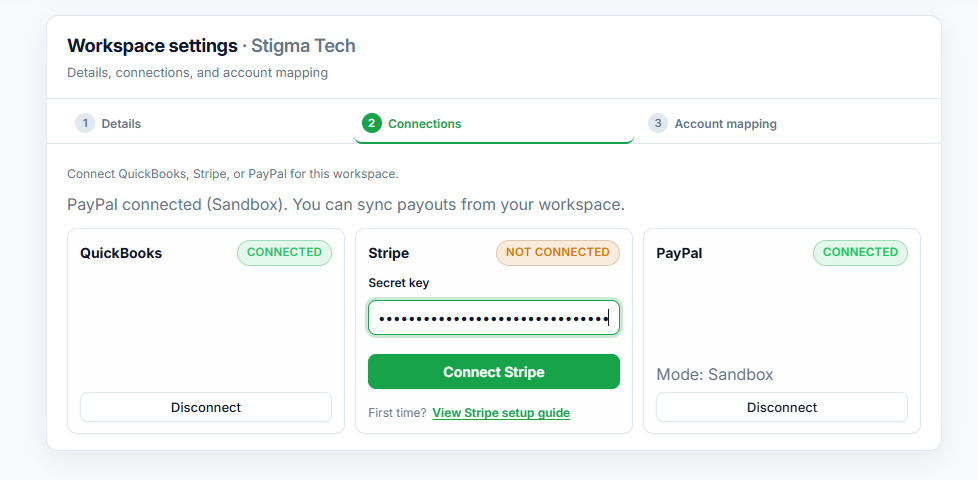
7C — Stripe (API sync)
You need: Stripe secret key (sk_test_… or sk_live_…).
- Settings → Connections → Stripe.
- Paste the secret key.
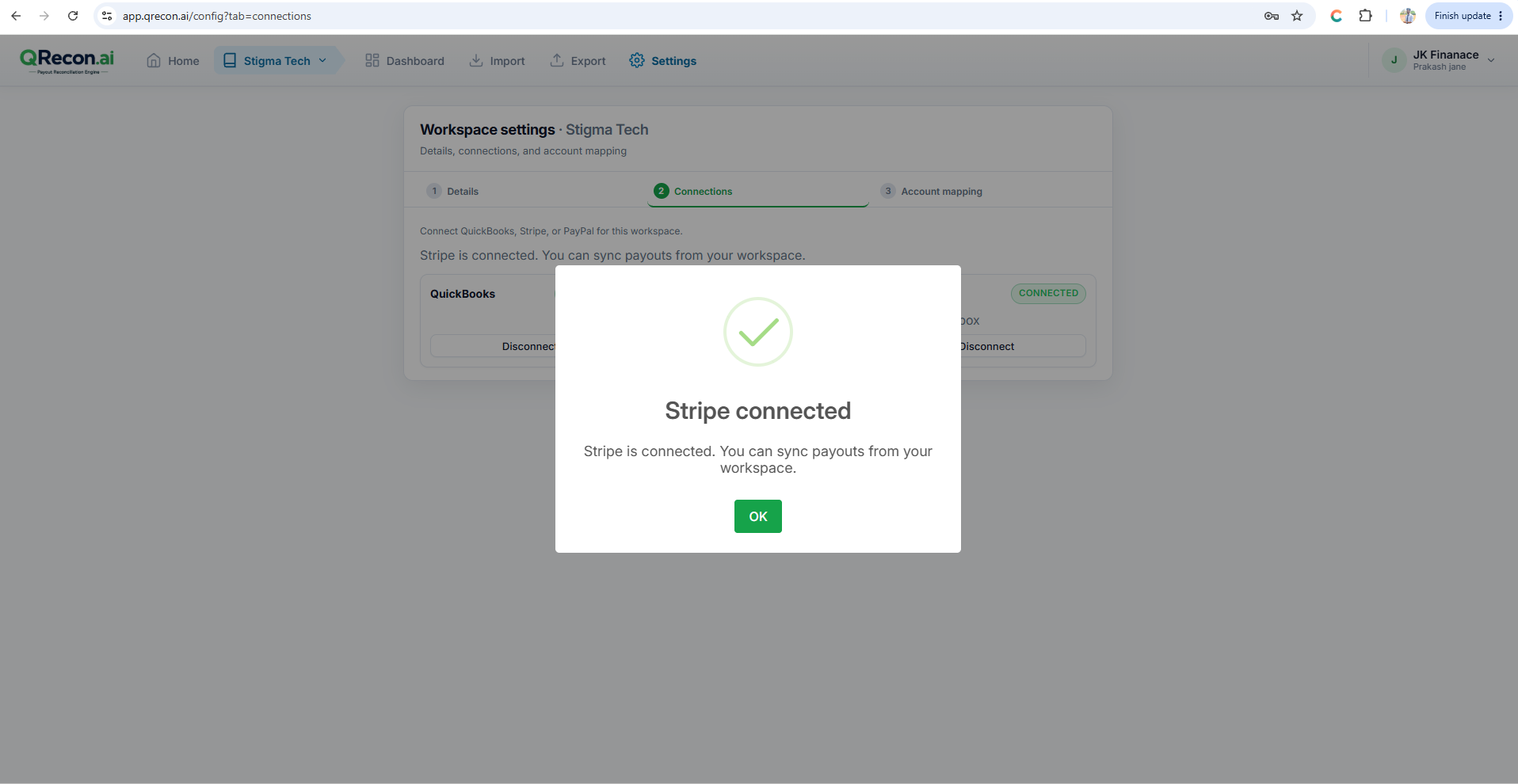
- Click Connect Stripe → status Connected.